

How to Create a Pixel Market BD Account: Step-by-Step Guide
Creating a Pixel Market BD account is free and takes under a minute. Tap Continue with Google for one-tap sign-up, or enter your name, email and a password of at least 8 characters, then confirm the link we email you. Your account keeps your orders, gift card codes, saved Player IDs, wallet and loyalty points in one safe place.
You need an account to buy anything on Pixel Market BD, and there's a good reason for it. Your gift card codes, order updates and saved Player IDs all live there, so nothing gets lost in a chat or an old SMS.
This guide shows how to create a Pixel Market BD account step by step, with real screens from the site. It covers:
- signing up with Google in one tap;
- signing up with your email and a password;
- what to do if the confirmation email doesn't arrive;
- signing in and resetting a forgotten password;
- everything you can do from your account dashboard.
Once you're set up, our guide on how to place an order takes you through your first purchase.
Why Do You Need a Pixel Market BD Account?
You need an account because every order and code is tied to it. It lets you track orders live, find your gift card codes any time under My codes, reuse saved Player IDs, and earn loyalty points. It's free, and it keeps your purchases safe even if you lose an email.
Here's what your account does for you:
- Keeps your codes safe. Every gift card and game key you buy appears under My codes, hidden until you choose to show it.
- Tracks your orders. You can see if an order is Pending, Payment confirmed or Delivered, and the page updates by itself.
- Saves your Player IDs. Top up the same game again without typing your ID every time.
- Holds your wallet and points. You earn 1 loyalty point for every ৳100 on completed orders, and each point is worth ৳1 at checkout.
- Remembers your wishlist. Tap the heart on any product to save it for later.
You can still browse the shop and fill your cart without an account. You only need to sign in when you check out.
How Do You Sign Up with Google?
Open the Create account page and tap Continue with Google. Pick your Google account, and you're signed in straight away. There's no password to create and no confirmation email to wait for. It's the fastest way to sign up on a phone.
Google handles the sign-in, and it only shares basic details like your name and email address with us. Google explains exactly what gets shared on its How Sign in with Google works page.
Signing up with Google also means one less password to remember. The next time you visit, tap Continue with Google again on the sign-in page.
If you'd rather not use Google, the email method below works just as well.
How to Create an Account with Your Email
Signing up with your email takes four short fields. Here's what the form looks like:
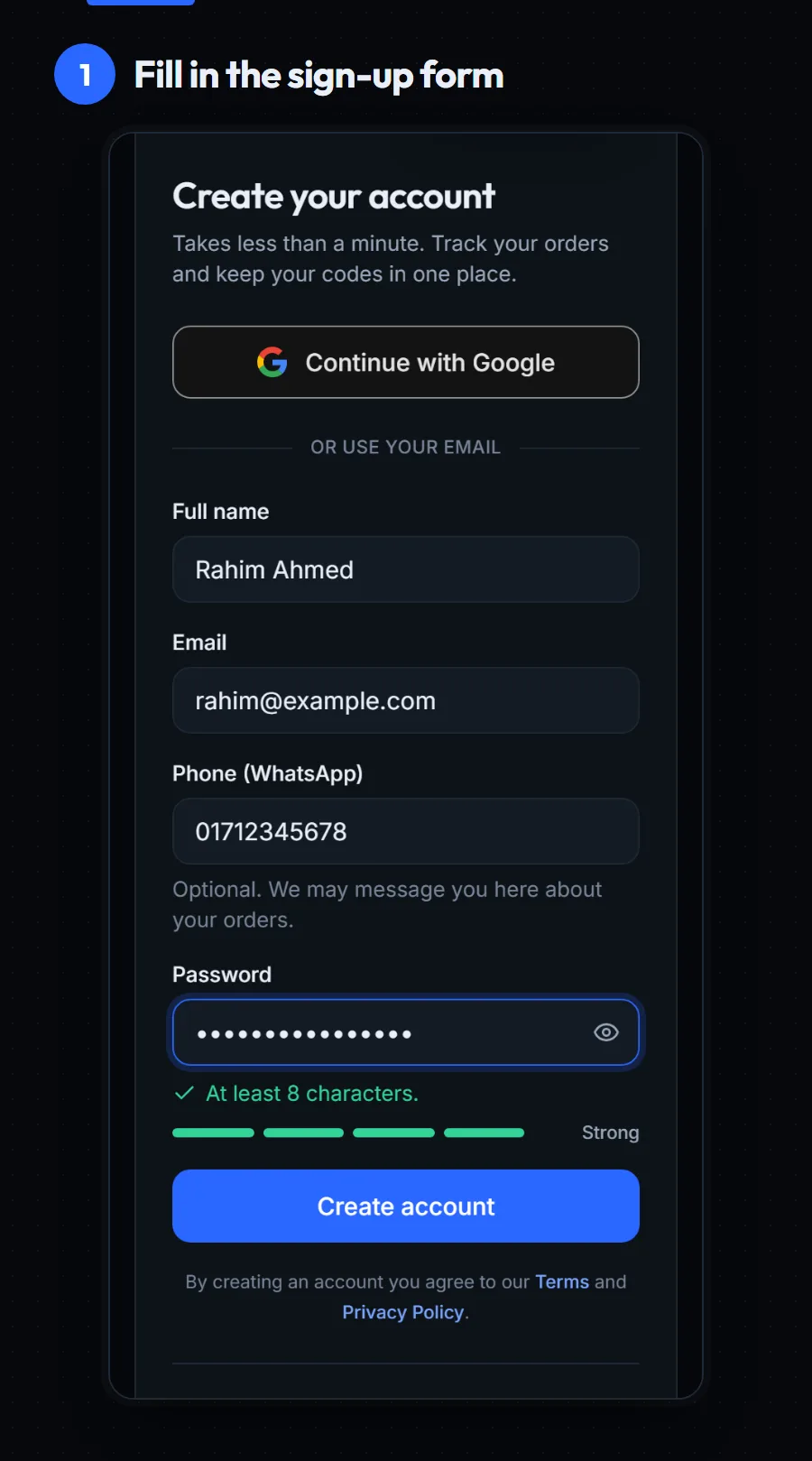
- Open the Create account page. You can also tap Account in the menu at the bottom of your phone screen.
- Type your full name. We use it on your orders and emails.
- Type your email address. Use one you can open right now, because we send a confirmation link to it.
- Add your phone number (optional). If you add your WhatsApp number, we can message you about an order when needed.
- Choose a password. It needs at least 8 characters. A bar under the box shows how strong it is, from Weak to Strong, and the eye button lets you check what you typed.
- Tap Create account. You'll see a Check your email screen.
- Open the email and tap the link. That confirms your account. Then sign in with your email and password.
By creating an account you agree to our Terms and Privacy Policy. The Privacy Policy explains what we store and why.
Tips for a strong password
A strong password is long, unique and easy for you to remember. Google's advice on creating a strong password boils down to a few habits:
- use a mix of words, numbers and symbols;
- don't reuse the password from your email or Facebook;
- avoid your name, birthday or phone number.
Didn't Get the Confirmation Email?
First check your spam or Promotions folder, because confirmation emails sometimes land there. Wait a minute, then tap Resend email on the Check your email screen. If you typed the wrong address, tap Use a different email and sign up again with the right one.
A few more things that help:
- Search your inbox for "Pixel Market BD".
- Mark it as not spam if you find it in spam, so future order emails reach your inbox. Gmail shows how in its spam help page.
- Use the Open Gmail button. If you signed up with a Gmail address, it opens your inbox in one tap.
- Don't tap Resend again and again. The button waits 60 seconds between emails, and a new email can take a minute to arrive.
Still stuck after a few minutes? Contact us with the email address you used, and we'll help.
How Do You Sign In and Reset Your Password?
To sign in, open the sign-in page and enter your email and password, or tap Continue with Google if you signed up that way. Forgot your password? Tap Forgot your password?, enter your email, and open the reset link we send you on the same phone.
A few things are worth knowing:
- You go back to where you were. If you sign in from checkout or a product page, the site returns you to that page afterwards.
- Reset links work on the device you asked from. If a link says it has expired or was opened on a different device, just ask for a new one.
- Caps Lock matters. The password box warns you if Caps Lock is on.
- Changing your password later is easy. Go to your account's Settings and use the password form there.
Your login email can't be changed from Settings. If you need a different email on your account, contact us and we'll sort it out.
What Can You Do in Your Account Dashboard?
Your dashboard is the home for everything you buy. At the top you'll see your name, and below it four tiles: your wallet balance, loyalty points, orders and codes received. Tap any tile to open the full page.
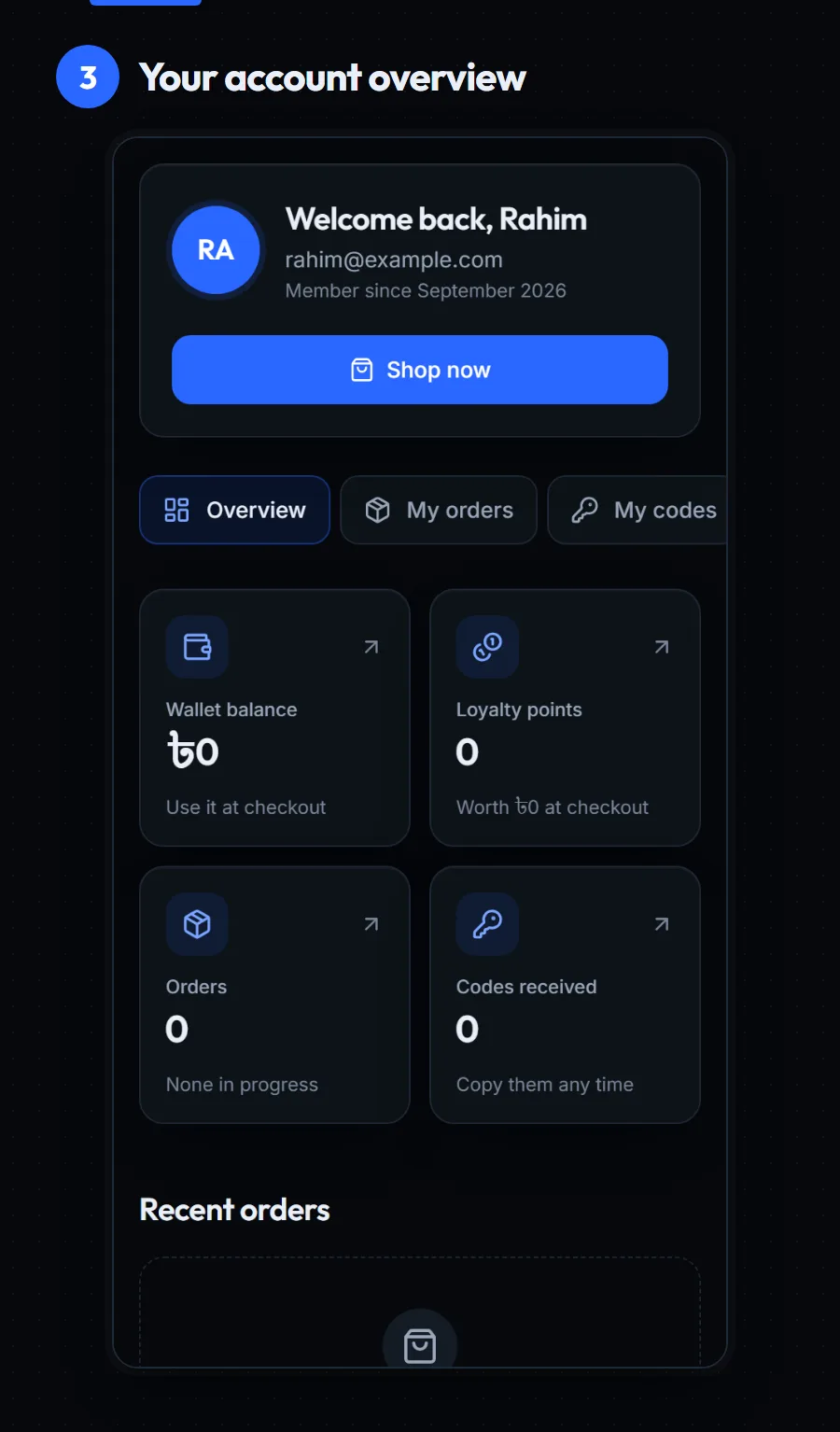
Here's what each part of your account does:
- Overview: your tiles, a live tracker for any order in progress, your latest orders and a Buy again row.
- My orders: every order, with tabs for In progress, Completed and Cancelled & refunded, plus a search box.
- My codes: all your gift card and game key codes. They stay hidden until you tap the eye, and Copy works without showing them.
- Wishlist: products you saved with the heart button.
- Saved IDs: the Player IDs you saved for top-ups.
- Wallet & points: your balance and a full history of refunds, points earned and points used.
- Settings: update your name and phone number, and change your password.
Using your account on more than one phone
You can sign in to the same account on your phone, a friend's laptop or a cyber cafe computer. Most things follow you everywhere:
- Your orders and codes are saved to your account, so they show up on any device.
- Your wishlist and saved Player IDs are saved to your account too.
- Your cart is different. It's kept in the browser you added items from, so a cart filled on your phone won't appear on your laptop.
That means you can buy on your phone at night and copy the code on your computer the next morning. Just remember to sign out on any device that isn't yours.
If you're buying Robux, the codes you get in My codes are redeemed at roblox.com/redeem. Our Robux buying guide shows that part.
How to Keep Your Account Safe
A few simple habits keep your account and your codes safe:
- Never share your password with anyone, including someone who says they work for Pixel Market BD.
- Keep codes private until you redeem them. Anyone who sees a full code can use it first.
- Sign out on shared phones or computers. The Sign out button is in your account menu.
- Check the address before you sign in. Only type your password on our real website.
The Bottom Line
Your Pixel Market BD account is free, quick to create, and it keeps every code and order safe in one place.
Remember:
- Tap Continue with Google for the fastest sign-up, or use your email and an 8+ character password.
- Confirm the email link, and check spam if it doesn't show up.
- Find your codes under My codes and your orders under My orders.
Ready? Create your free account, then follow our guide to placing your first order.
Frequently asked questions
Is a Pixel Market BD account free?
Yes. Creating a Pixel Market BD account is completely free, and there's no monthly fee. You only pay for the products you buy. Your account keeps your orders, gift card codes, saved Player IDs, wallet and loyalty points in one place.
Can I sign up for Pixel Market BD with Google?
Yes. Tap Continue with Google on the Create account page and pick your Google account. You're signed in straight away, with no password to create and no confirmation email to wait for. Use the same button to sign in next time.
Why didn't I get the Pixel Market BD confirmation email?
The email may be in your spam or Promotions folder, so check there first. It can also take a minute to arrive. If it still isn't there, tap Resend email on the Check your email screen, or tap Use a different email if you typed the wrong address.
How do I reset my Pixel Market BD password?
On the sign-in page, tap Forgot your password? and enter your email. We send you a reset link; open it on the same phone or computer and choose a new password. If the link has expired, just ask for a new one.
Can I change the email on my Pixel Market BD account?
Your login email can't be changed from the Settings page. You can update your name, phone number and password there yourself. If you need a different email on your account, contact Pixel Market BD support and we'll help.