

How to Place an Order on Pixel Market BD (2026 Guide)
Placing an order on Pixel Market BD takes four steps: sign in, pick your product and option, pay with bKash, Nagad, Rocket or Upay, then type your transaction ID (TrxID). Your order page updates by itself. Gift card codes appear under My codes as soon as your payment is confirmed, and top-ups go straight to the Player ID you entered.
Buying a game top-up or gift card online shouldn't feel like a gamble. On Pixel Market BD, how to place an order comes down to a few taps on your phone, and you never need an international card.
This guide walks through every screen in order:
- what you need before you start;
- how to choose the right option (and where your Player ID goes);
- how to pay with bKash, Nagad, Rocket or Upay and find your TrxID;
- what happens after you press Place order;
- how coupons, your wallet and loyalty points work.
The pictures below are real screens from the shop, so you'll know exactly what to expect. If you're buying Robux, our guide to buying Robux in Bangladesh adds the Roblox-specific steps.
Do You Need an Account to Order on Pixel Market BD?
Yes. You need a free account to place an order, so your orders, codes and payments are saved in one safe place. Signing up takes under a minute with Google or your email. You can browse and fill your cart first, and sign in at checkout.
An account isn't just a formality. It's where your gift card codes live after delivery, so you can find them again even if you delete an email. It also shows the live status of every order.
If you don't have one yet, follow our step-by-step guide on how to create a Pixel Market BD account. You can add items to your cart before you sign in, and they'll still be there when you come back to checkout.
How Do You Find the Product You Want?
Use the search button, or open one of the four categories: Top-Ups, Gift Cards, Subscriptions and Game Keys. Each product page shows its options, prices in Taka, the delivery time, and tabs with instructions and common questions. Read those tabs before you buy.
The categories are the fastest way in:
- Top-Ups: in-game currency like PUBG Mobile UC and Free Fire diamonds, sent to your Player ID.
- Gift Cards: codes for Steam, Google Play, PlayStation, Roblox and more.
- Subscriptions: Netflix, Spotify, YouTube Premium and others, paid in BDT.
- Game Keys: full PC games as Steam keys.
Can't find what you want? Use the Request a product page and tell us what to add.
On a product page, check three things before you pay: the region (some cards only work on accounts from one country), the delivery time, and the Instructions tab. That tab explains exactly what happens after payment.
How to Choose Your Option and Enter Your Player ID
Every product has options, such as 660 UC or 300 Robux. Tap the one you want and the price at the bottom updates straight away.
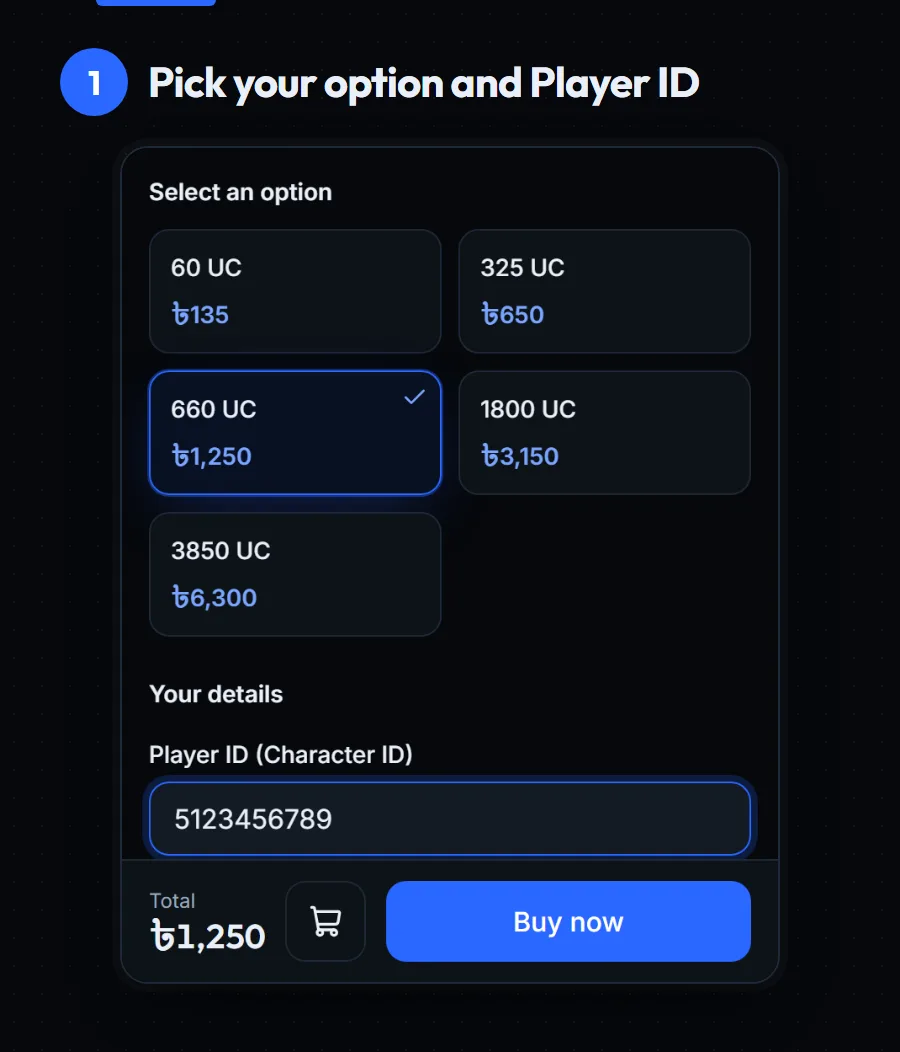
What comes next depends on the kind of product:
- Top-ups ask for your Player ID, and some games also need a Zone ID or server. Type it carefully, because we deliver to exactly the ID you enter. Not sure where to find it? Each product page has a "How to find your ID" section.
- Gift cards and game keys don't need any ID. You get a code and redeem it yourself.
- Subscriptions are set up for you after payment, and we message you the details.
Buying the same top-up again later? Tick Save this ID for next time. The next time you open that game, you can pick the saved ID instead of typing it.
When you're ready, press Buy now to go straight to checkout, or Add to cart to keep shopping. At the cart you can change quantities and add a coupon code.
How Do You Pay with bKash, Nagad, Rocket or Upay?
At checkout, choose your wallet and the shop shows the number to pay and the exact amount. Use Send Money in your bKash, Nagad, Rocket or Upay app, then copy the transaction ID (TrxID) from the confirmation message and type it into the box. Then press Place order.
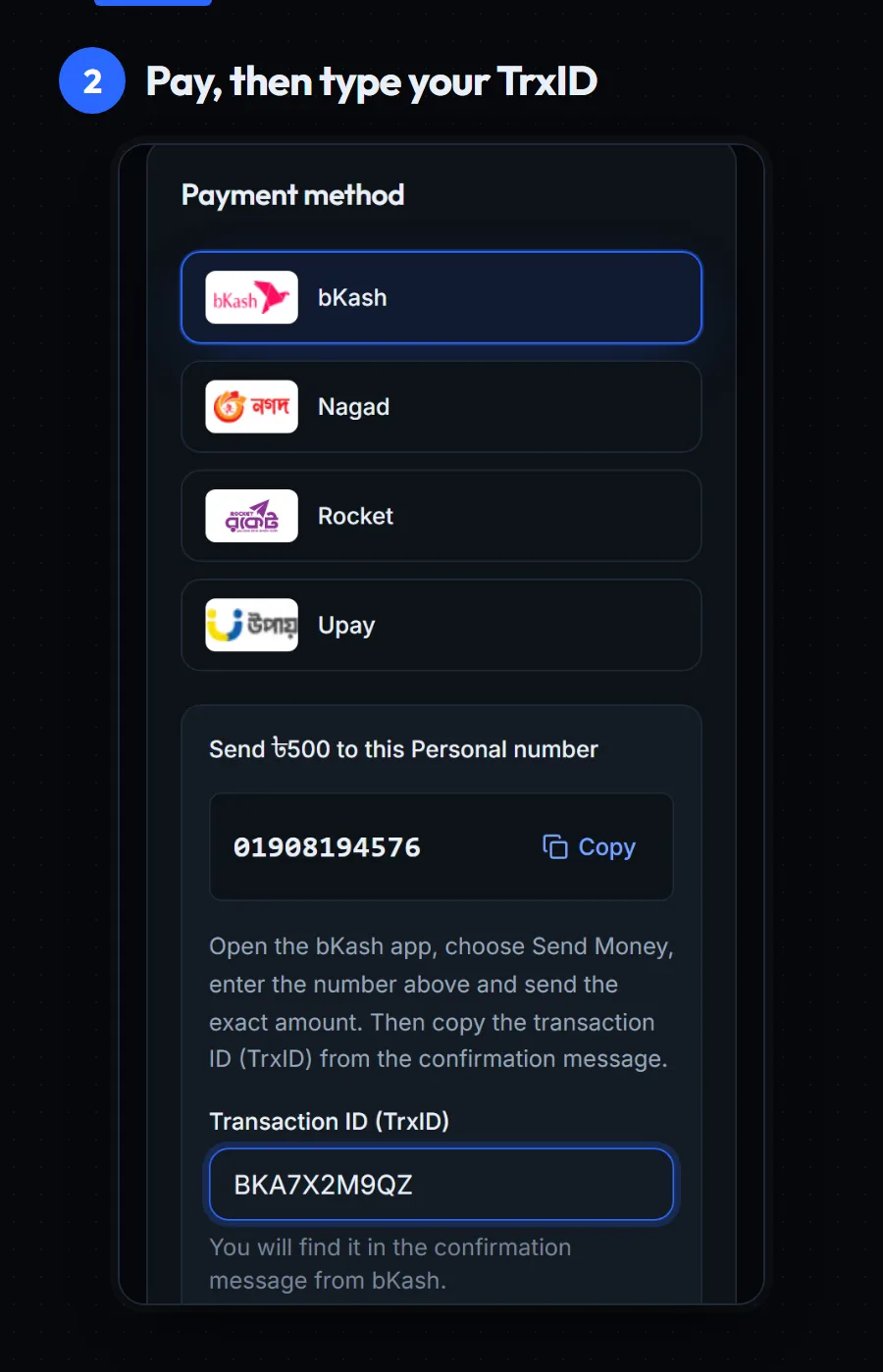
Here's the payment step in detail:
- Choose your payment method. Tap bKash, Nagad, Rocket or Upay.
- Copy the number. The shop shows the number and the exact amount to send. Tap Copy so you don't mistype it.
- Send the money. Open your wallet app and use Send Money. bKash explains the steps on its Send Money page. Nagad, Rocket and Upay work the same way.
- Copy your TrxID. After you send, your wallet shows a confirmation message with a transaction ID. It's a mix of 8 to 14 letters and numbers.
- Type it and place the order. Paste the TrxID into the box and press Place order.
Two tips save a lot of time. Send the exact amount shown, not a rounded number. And double-check the TrxID before you press Place order, because we match your payment with it.
What Happens After You Place Your Order?
Your order page opens straight away and shows its status. It starts as Pending while we check your payment, moves to Payment confirmed, and ends at Delivered. The page updates by itself, and we email you at each step. Gift card codes then appear under My codes.
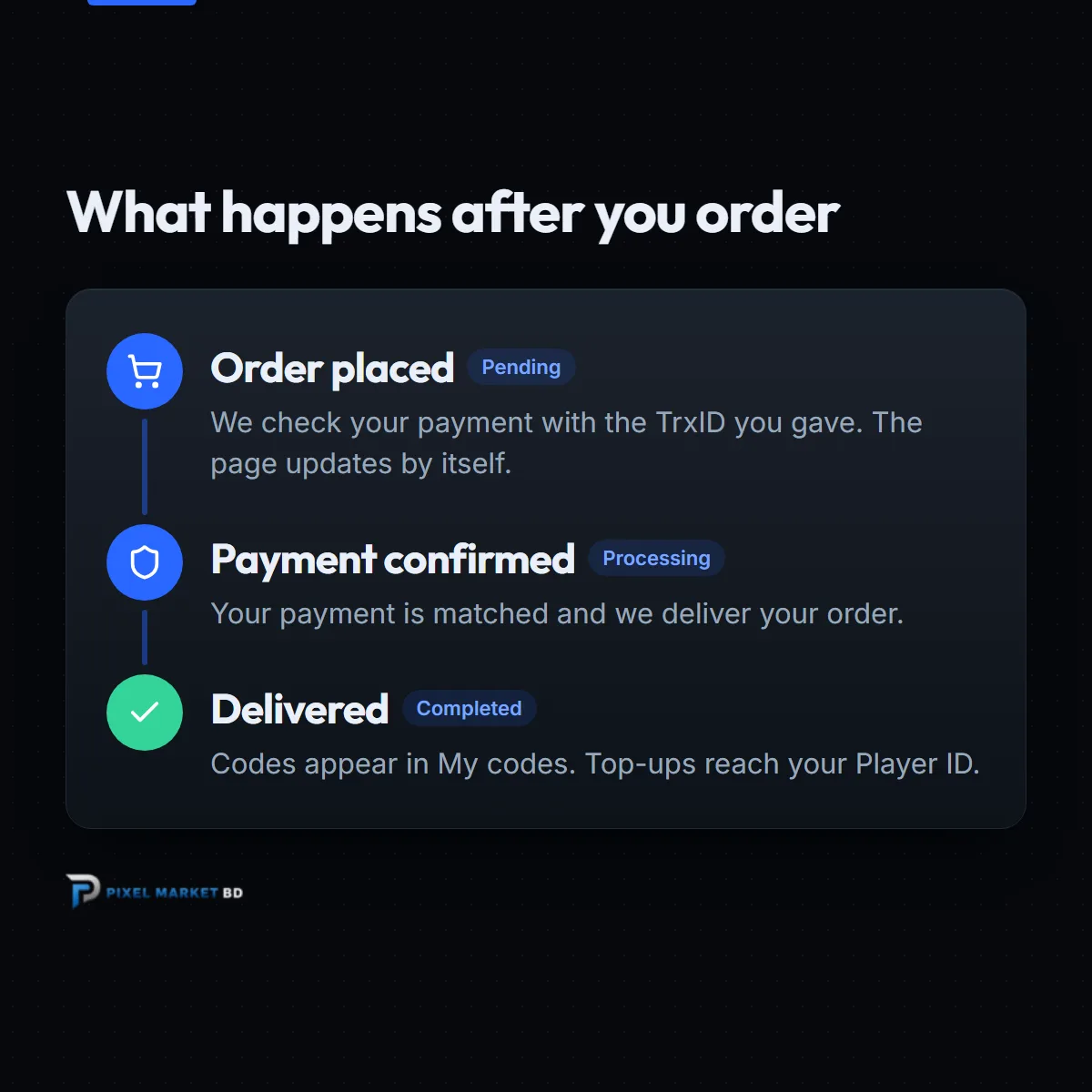
Here's what each status means:
- Pending: we're checking your payment with the TrxID you gave. You don't need to refresh; the page updates on its own.
- Payment confirmed (Processing): your payment is matched and we're delivering the order.
- Delivered (Completed): you're done. A gift card or game key shows on the order page and under My codes. A top-up has gone to your Player ID.
Codes stay hidden until you tap the eye button, and you can copy them without showing them on screen. Keep them private until you redeem them, because anyone who sees a full code can use it.
Once an order is delivered, you can also rate the product from your order page. Your review helps other gamers choose.
How long does delivery take?
It depends on the product, and every product page shows its own Delivery time before you pay. Here's the general picture:
- Gift cards and game keys are marked Instant. The code appears in your account as soon as your payment is confirmed.
- Top-ups are sent to your Player ID after your payment is confirmed. Most are marked Instant; a few, like Valorant Points, show a short wait such as 5 to 15 minutes.
- Subscriptions are set up by our team, usually within 1 hour, and we message you the details when it's ready.
The one thing that can slow an order down is a payment we can't match. That usually means a mistyped TrxID or a different amount. So take ten seconds to double-check both before you press Place order.
Coupons, Wallet Balance and Loyalty Points
Three things can lower what you pay, and all three are optional.
- Coupon codes. Type a code in the cart's Coupon code box and press Apply. Some codes need a minimum spend, and the cart tells you if so.
- Loyalty points. You earn 1 point for every ৳100 on completed orders, and each point is worth ৳1 at checkout. Tick "Use loyalty points" to spend them.
- Wallet balance. If an order is ever refunded, the money goes to your wallet. You can use it at checkout for your next order.
You can see your points and wallet history anytime in your account, under Wallet & points.
What If Something Goes Wrong?
Most problems come from a typo in the TrxID or Player ID, or from sending a different amount. Contact us with your order number and TrxID and we'll check it. If an order is cancelled, any wallet money or points you used go back to your account.
A few common cases:
- You typed the wrong Player ID. Contact us straight away, before the order is delivered, and include your order number.
- You sent the wrong amount. Don't send it again. Send us your order number and TrxID so we can match the payment.
- A code shows an error when you redeem it. Take a screenshot of the error and message us. Many "invalid code" errors are just look-alike letters, like 0 and O.
You can reach us through the Contact page. Our refund policy explains when an order can be refunded.
The Bottom Line
Ordering on Pixel Market BD is quick once you've done it once:
- Sign in, then pick your product and option (and your Player ID for top-ups).
- Send the exact amount with bKash, Nagad, Rocket or Upay, and type your TrxID.
- Watch your order page, then find your code under My codes.
You never need an international card, and your codes stay safe in your account. Ready for your first order? Browse the whole shop and pick something you'll enjoy.
Frequently asked questions
Can I order on Pixel Market BD without an account?
No. You need a free account to place an order, so your orders and codes are saved safely. You can browse and add items to your cart first, then sign up with Google or your email at checkout. It takes less than a minute.
Which payment methods does Pixel Market BD accept?
Pixel Market BD accepts bKash, Nagad, Rocket and Upay. At checkout you send the exact amount to the number shown with Send Money, then type the transaction ID (TrxID) from your confirmation message. You don't need an international card.
Where do I find my TrxID?
Your TrxID is in the confirmation message your wallet sends after the payment, and in your transaction history in the bKash, Nagad, Rocket or Upay app. It is a mix of 8 to 14 letters and numbers. Copy it exactly and paste it into the Transaction ID box at checkout.
How long does delivery take on Pixel Market BD?
Gift cards and game keys appear in your account as soon as your payment is confirmed. Most top-ups are also marked Instant, while subscriptions are usually set up within 1 hour. Every product page shows its own delivery time before you pay.
Where can I see my gift card code after buying?
Open your account and go to My codes, or open the order itself under My orders. Codes are hidden until you tap the eye button, and you can copy them without showing them on screen. We also email you when your code is ready.